


DAW QUICKSTART

Quickstart
Installation & Setup
If you are new to setting up MIDI plugins, quick DAW setup guides are available in the “Quickstart” folder inside your download.
QUICKSTART GUIDES
QUICKSTART GUIDE
01 / 04

Ableton Live Setup
Mac
Create two MIDI tracks, then follow the steps below for live keyboard input.


1
Add Chord Chameleon to the first MIDI track
2
Add your instrument to the second MIDI track, then choose Chord Chameleon in both “MIDI From” menus
3
On the instrument track, set Monitor to ‘In’
4
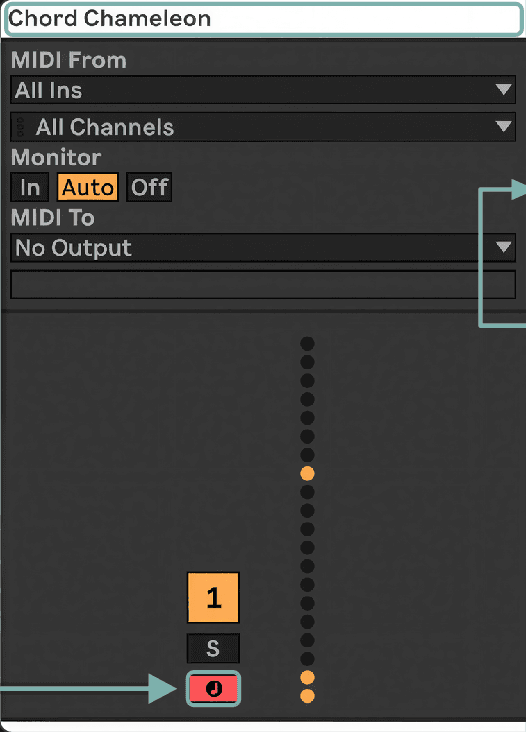
Arm Chord Chameleon’s track
5
Leave the instrument track unarmed for live play, or arm it to record the processed MIDI
Alternate Live Input Setup
Alternatively, follow steps 1–3, then leave Chord Chameleon’s track unarmed and set its Monitor to ‘In’. This lets you record your live playing as processed MIDI by arming only the instrument track. If you switch between multiple instruments in the same set, the main setup shown above can make it easier to keep MIDI routed to the instrument you want to play.
QUICKSTART GUIDE
02 / 04
Ableton Live Setup
WINDOWS
Create two MIDI tracks, then follow the steps below for live keyboard input.


1
WINDOWS · BEFORE LOADING CHORD CHAMELEON
Right-click Chord Chameleon in Ableton’s Browser and make sure Auto-Scale Plugin Window is OFF
An Ableton/Windows plug-in scaling setting, not a Chord Chameleon control.


2
Add Chord Chameleon to the first MIDI track
3
Add your instrument to the second MIDI track, then choose Chord Chameleon in both “MIDI From” menus
4
On the instrument track, set Monitor to ‘In’
5
Arm Chord Chameleon’s track
6
Leave the instrument track unarmed for live play, or arm it to record the processed MIDI
Alternate Live Input Setup
Alternatively, follow steps 1–4, then leave Chord Chameleon’s track unarmed and set its Monitor to ‘In’. This lets you record your live playing as processed MIDI by arming only the instrument track. If you switch between multiple instruments in the same set, the main setup shown above can make it easier to keep MIDI routed to the instrument you want to play.
QUICKSTART GUIDE
03 / 04
Logic Pro Setup
For Live Keyboard Input
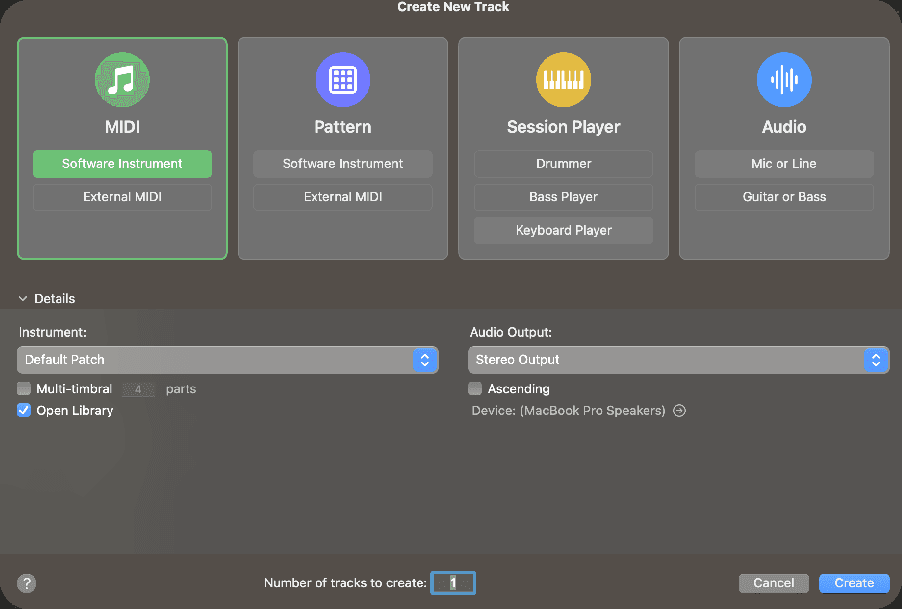

1
TRACK › NEW TRACK
Create a Software Instrument track
Live play: Use this setup for live play and automation recording

2
2
CHANNEL STRIP
Click the MIDI FX slot

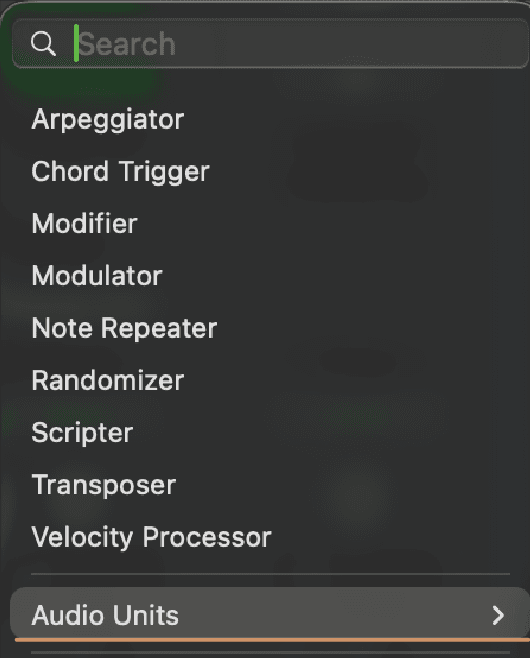


3
MIDI FX MENU
Search for Chord Chameleon, then press Return
Or navigate to ‘Audio Units’ and insert Chord Chameleon
OPTIONAL
Recording Processed MIDI
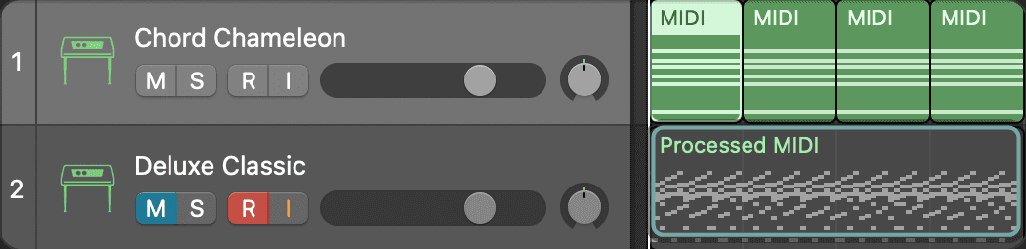
TWO-TRACK WORKFLOW



1
Create two Software Instrument tracks. Add Chord Chameleon to the first track.
2
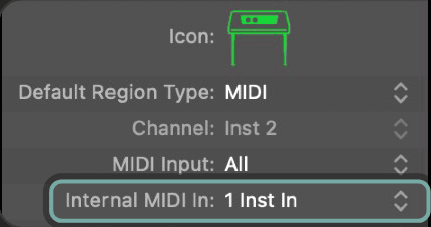
Unfold the second track’s ‘Track’ Inspector and set its Internal MIDI In to the first track.
3
Record-enable and mute the second track.
4
Chord Chameleon’s note transformations will print to the second track when recording. This method is ideal for remixing existing MIDI files.
QUICKSTART GUIDE
04 / 04

FL Studio Setup
For live keyboard input with VST instruments

1
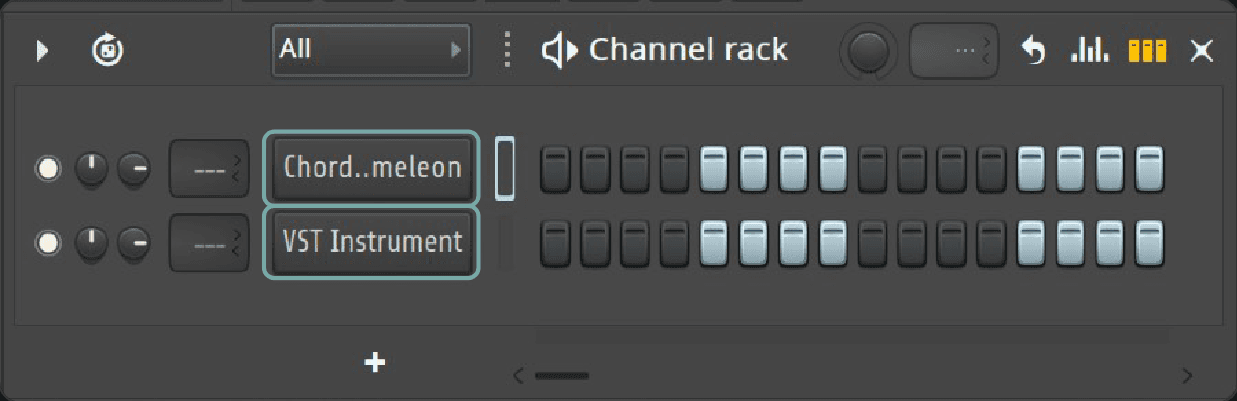
Add Chord Chameleon and your VST instrument to separate channels in the Channel Rack.

2
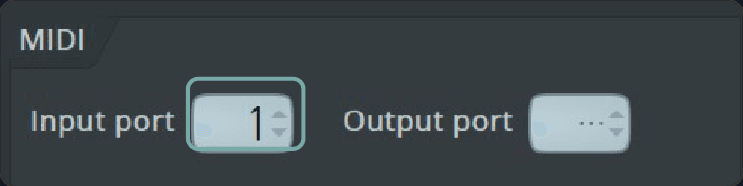
MUST MATCH
3
2
CHORD CHAMELEON · PLUG-IN OPTIONS
Open Chord Chameleon and click this plugin options icon:

Then, set Chord Chameleon’s Output port to 1 or any unused port.
3
VST INSTRUMENT · PLUG-IN OPTIONS
Open your VST Instrument and click this plugin options icon:
Then, set your VST Instrument’s Input port to the same port as Chord Chameleon’s Output port.


4
Return to Chord Chameleon and click this icon:
Done: It will now process your live MIDI input and send it to your VST instrument.
OPTIONAL
Recording Processed MIDI


1
Record your performance into the piano roll on Chord Chameleon’s channel.
2
Right-click Chord Chameleon.
3
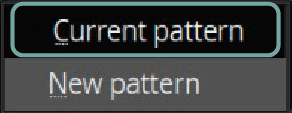
Choose Burn MIDI to > Current pattern.
4
Chord Chameleon’s note transformations will print to the piano roll.
FL Studio Setup (FL Instruments)
For live keyboard input with native FL Studio instruments


1
Add Patcher to the Channel Rack, then open it.
PATCHER · MAP TAB


2
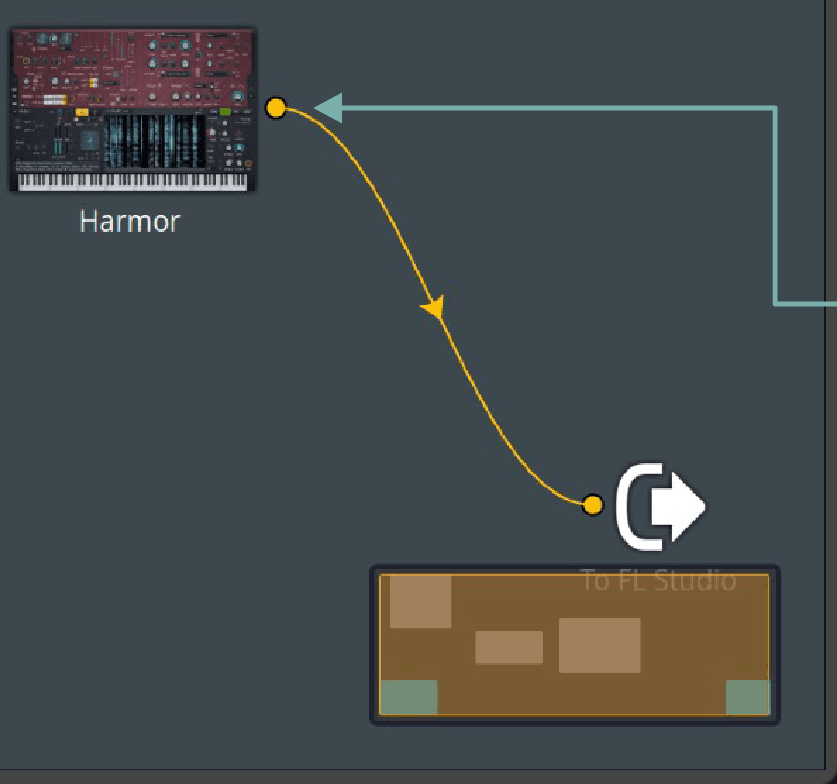
In Patcher’s Map tab, right-click and add Chord Chameleon and your native FL Studio instrument.
3
Connect From FL Studio to Chord Chameleon with a green cable.
4
Connect Chord Chameleon to your native instrument (e.g. Harmor) with a green cable, then connect the instrument to To FL Studio with a yellow cable.
CHORD CHAMELEON · SETTINGS

6
5
Double-click Chord Chameleon and open its settings in the top-left corner:

6
Set Chord Chameleon’s MIDI Output port to 1 or any unused port.
7
Play your keyboard into the Patcher channel. Chord Chameleon will now process the incoming MIDI before it reaches your native instrument.